Compress PDF to a specific size in KB Online
Need to compress a PDF to a specific size in KB? DocSizer helps you reduce a PDF to a target file size for online forms, applications, and document uploads. Upload your PDF, enter the required size, and download the result. Check the output carefully because this tool converts PDF pages into images, so selectable text and links may not be preserved.
How to compress PDF to a specific size in KB
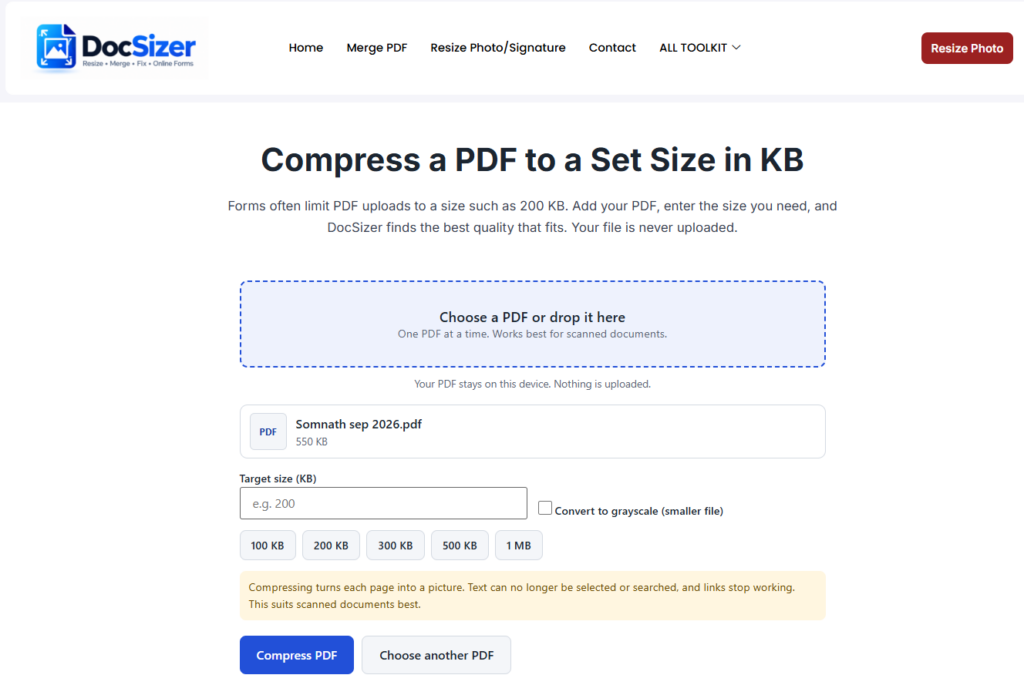
- Choose your PDF, or drop it onto the box.
- Enter the size your form allows in KB, or tap one of the quick sizes.
- Press compress PDF to a specific size and wait while each page is processed.
- Check the size shown, download the new PDF and upload it to your form.
What to know before you start
- This tool works by turning each page into a picture. Text can then no longer be selected or searched, and links stop working. It suits scanned documents best.
- If your PDF is already smaller than the size you enter, you will be told, and nothing needs to be done.
- A very small limit on a long document forces the pages to be small and soft. If fine print becomes hard to read, try a higher limit, or split the document into two PDFs.
- For scans that are in colour, the grayscale option can make the file smaller.
- Password-protected PDFs cannot be compressed. Remove the password first.
How to compress a PDF to a specific size in KB
Online forms may require PDFs to stay below a maximum file size. With DocSizer, you can enter a target size in KB and try to prepare a smaller file.
Can I compress a PDF to 200 KB?
Enter 200 in the target-size field and run the tool. Check the resulting file size before uploading it to your form.
Will compressing a PDF affect its quality?
It can. This tool converts PDF pages into images, and the selected quality affects readability and file size. Inspect small text, tables, and signatures before using the result.
Why might my PDF not reach the exact size?
The result depends on the original document, its page count, image content, and selected quality. A very small target may reduce readability, so try a slightly larger limit if necessary.
Can I use this tool for scanned PDFs?
Yes, scanned PDFs may be suitable because their pages already contain images. Check the final document to make sure the text and details remain readable.
Frequently asked questions
Is this tool free?
Yes. There is no sign-up and no watermark on your PDF.
Is my PDF uploaded to a server?
No. The PDF is processed in your browser, on your own device, so your document is not sent anywhere.
Why can't I select the text after compressing?
To make the file small, each page is saved as a picture. A picture of text cannot be selected or searched. If your form needs selectable text, try a higher limit or use the original file.
Which PDFs work best?
Scanned documents and photos saved as PDF work best. PDFs made from a word processor are often already small, and turning them into pictures can make them look worse.
Why can't it reach my size?
Many pages in a small limit leave very little room for each page. Try a higher limit, the grayscale option, or split the document into two PDFs.
Is there a file size limit?
There is no fixed limit, but very large PDFs can be slow or run out of memory, especially on phones. The tool warns you when a file is large.